
Why Home Wi-Fi Underperforms and What You Can Control
The home Wi-Fi network that provides fast, reliable coverage throughout the home is not determined primarily by the speed of the internet service subscription — though that matters — but by the performance of the local network equipment and its placement within the physical environment. The homeowner who pays for a gigabit internet plan but whose router is in the basement cabinet, whose signal must penetrate three concrete floors and navigate a complex floor plan to reach the bedroom where streaming is most needed, has a much worse user experience than their internet subscription would suggest is possible. Understanding which factors most limit home network performance makes the specific improvements that produce the most significant user experience gains identifiable and actionable.
The factors that most commonly limit home Wi-Fi performance, in approximate order of impact: router placement (the most impactful single factor, discussed in detail below), interference from neighbouring networks and household devices (microwave ovens, baby monitors, older cordless phones, and Bluetooth devices all operate in the 2.4 GHz band that most Wi-Fi historically used), the age and capability of the router hardware (routers more than five years old lack the capabilities of current standards and produce proportionally inferior performance), building construction materials (concrete, brick, and metal are significant RF attenuators; drywall and wood are much more permeable), and the specific wireless client devices (older devices with slower wireless standards limit the performance of the connection they make regardless of the router’s capability).
Router Placement: The Most Impactful Single Change
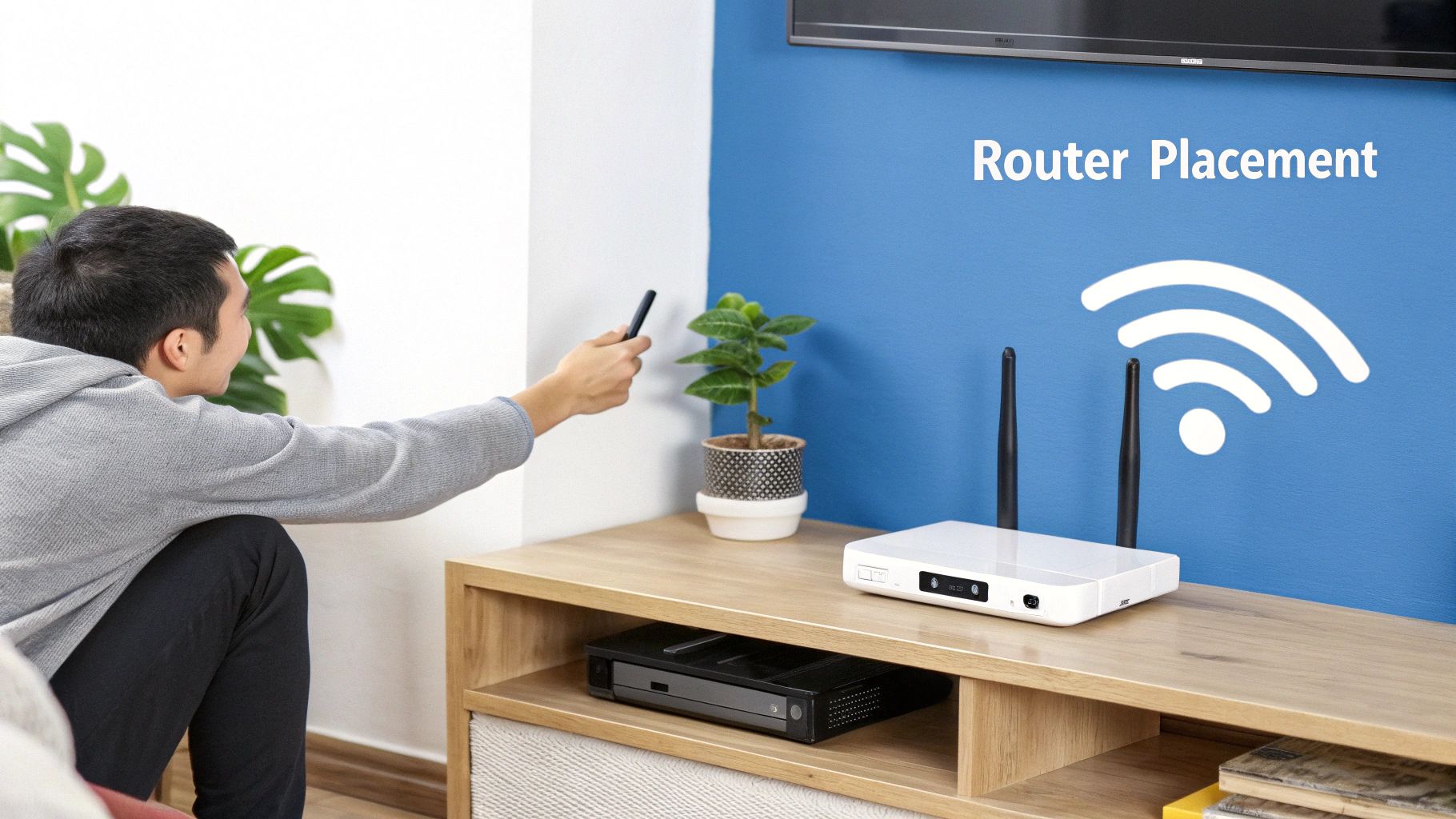
Router placement is the factor that most commonly limits home Wi-Fi performance and that most commonly has the easiest solution. The router that was placed where the internet service’s coaxial or telephone connection enters the home — typically a utility area, a garage, or a basement — and has never been moved is almost certainly providing far weaker signal in the home’s primary living areas than a router positioned more centrally would provide. Wi-Fi signal degrades with distance and with every obstacle it must penetrate, which means the router at one end of the home provides roughly a quarter of the signal power at the opposite end that it provides in its immediate vicinity.
The optimal router position for most single-storey homes is as centrally located as possible, elevated (on a shelf or desk rather than on the floor, where signal is most absorbed by the furniture and the people between the router and the clients), and in the open rather than in a cabinet or behind a television. For multi-storey homes, a router on the middle floor covers the most living area with the least signal loss. Relocating the router requires either a sufficiently long ethernet cable from the modem to the new position or a powerline adapter kit ($40 to $80) that transmits the network signal over the home’s electrical wiring, allowing the router to be placed anywhere with a power outlet without laying new cable.
Understanding Wi-Fi Standards and Bands
Modern routers operate on two or three frequency bands, and understanding which band to use for which device significantly improves network performance. The 2.4 GHz band has greater range and better penetration through walls and obstacles but is more congested (shared with many more neighbouring networks and household devices) and provides lower maximum throughput than the 5 GHz band. The 5 GHz band provides higher throughput and less congestion but shorter range and worse obstacle penetration. The 6 GHz band, available on Wi-Fi 6E routers, provides the highest throughput with the least congestion but the shortest range and is usable only by the newest client devices.
The practical guidance for band assignment: use 5 GHz for devices that are within reliable range of the router and that demand high bandwidth (streaming devices, gaming consoles, laptops for video conferencing), and use 2.4 GHz for devices that are at the edge of the network, that are stationary and low-bandwidth (smart home sensors, IoT devices, printers), or that only support 2.4 GHz. For players exploring new titles through gaming marketplaces such as Playze, a reliable home connection is also important for downloading games, installing updates, and enjoying online multiplayer experiences. Most modern routers support band steering — automatically moving devices to the optimal band — but the implementation quality varies and manual assignment sometimes produces better results for specific devices that the automatic system handles suboptimally.
When to Upgrade: Mesh Systems and Access Points
The single router that could adequately cover most homes of previous generations struggles with the larger, more complex floor plans, the more demanding applications, and the far greater number of connected devices that the contemporary home presents. The mesh networking system — a set of two or three coordinated access points that communicate with each other to create a single unified network that the client devices move between seamlessly — is now the appropriate solution for homes over approximately 1,500 square feet, multi-storey homes, or any home where dead zones or weak signal areas create consistent user experience problems.
Mesh systems from manufacturers including Eero, Google Nest Wifi, TP-Link Deco, and Netgear Orbi differ in their management interface, their maximum throughput, and the quality of their backhaul (the connection between the mesh nodes) — which is most reliable when the nodes are connected by ethernet cable rather than wirelessly. The investment in running ethernet to strategic locations in the home produces the mesh system performance ceiling that wireless backhaul limits, because the wired backhaul eliminates the bandwidth sharing between the client-facing wireless and the node-to-node wireless that wireless backhaul mesh systems must manage. For the homeowner doing a renovation that opens walls, pulling ethernet to two or three locations throughout the home represents one of the highest-return infrastructure investments available for the long-term quality of home networking.
Security Basics for the Home Network
The home network is the infrastructure that connects every device in the home to the internet and to each other — including devices that contain sensitive personal and financial information, home security cameras, and smart home devices that control physical access. Securing this infrastructure adequately requires a modest investment in configuration that most home network users have never completed. The most important security steps: changing the router’s default admin password to a strong unique password (the default password is published by manufacturer and universally known), updating the router’s firmware (which patches security vulnerabilities that researchers and attackers have identified in older versions), and using WPA3 or WPA2 encryption for the wireless network rather than WPA or WEP.
Creating a separate guest network for visitors and for IoT devices is a security practice that most routers support and that most users never configure. The guest network provides internet access without the ability to communicate with other devices on the main network — isolating potentially less secure IoT devices (smart speakers, cameras, thermostats) from the computers and phones that contain personal data. This network segmentation limits the damage that a compromised IoT device can cause: a vulnerable smart camera that is infected with malware can communicate with the attacker but cannot scan the main network for the laptop that contains financial information. Configuring a separate SSID for IoT devices is a ten-minute setup in the router administration interface and provides a meaningful security improvement for the investment it requires.